
How to Migrate Email to Google Workspace: DNS & MX Setup
Prepare mailboxes, preserve existing mail data and verify Google Workspace routing and authentication during an email migration.
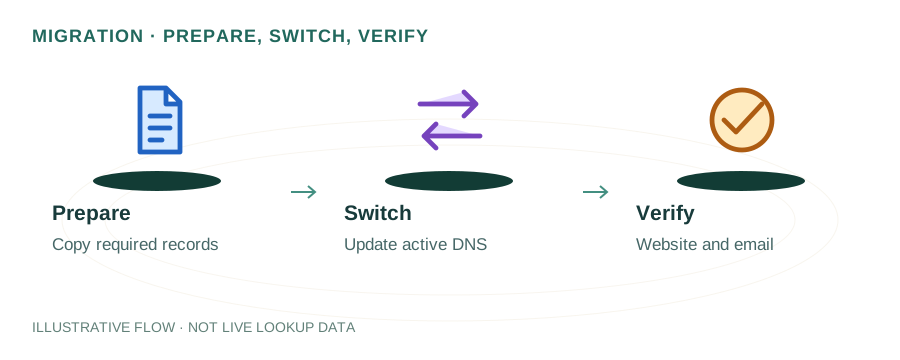
The named scenario below is a worked example for learning, not a verified incident report. Provider settings and outcomes vary.
Google Workspace Email Migration
Export existing emails
Set up Google Workspace
Point to Google servers
Configure auth records
Import emails & contacts
Test send & receive
🎯 Illustrative example: Rohit Migrates 50 Users from Zoho to Google Workspace
Rohit's company switches from Zoho Mail to Google Workspace. He needs zero email downtime during migration:
Pre-migration: Backup everything
Exports all emails from Zoho using IMAP. Documents existing MX, SPF, DKIM records.
Creates Google Workspace accounts
Sets up all 50 user accounts in Google Admin. Doesn't change MX yet — Zoho is still active.
Imports data to Google
Uses Google's data migration tool to import emails, contacts, and calendars from Zoho via IMAP.
Saturday night: Switches MX records
Removes Zoho MX records. Adds Google MX: ASPMX.L.GOOGLE.COM (priority 1) and ALT servers.
Updates SPF and DKIM
Changes SPF to include:_spf.google.com. Sets up Google DKIM key. Updates DMARC record.
Monday morning: All users on Gmail
50 users log into Gmail with their existing @company.com addresses. All old emails are there.
Zero downtime migration. All 50 users transitioned seamlessly over a weekend.
Forgetting to update SPF/DKIM after MX change = emails fail authentication for 1-2 days.
Before You Start
Prepare the following before beginning migration:
- A Google Workspace account (workspace.google.com)
- Access to your domain's DNS management panel
- List of all email addresses that need to be migrated
- Backup of existing emails (IMAP export or provider's export tool)
Step 1: Verify Your Domain
Google requires domain verification. The easiest method is adding a TXT record:
example.com. TXT "google-site-verification=XXXXXXXXXXXXX"
Google provides the exact value in the Admin Console. Verification typically takes a few minutes after the DNS record propagates.
Step 2: Set Up MX Records
Replace your existing MX records with Google Workspace's MX records:
| Priority | Mail Server |
|---|---|
| 1 | ASPMX.L.GOOGLE.COM |
| 5 | ALT1.ASPMX.L.GOOGLE.COM |
| 5 | ALT2.ASPMX.L.GOOGLE.COM |
| 10 | ALT3.ASPMX.L.GOOGLE.COM |
| 10 | ALT4.ASPMX.L.GOOGLE.COM |
Step 3: Configure SPF
Update your SPF record to authorize Google's mail servers:
v=spf1 include:_spf.google.com ~allIf you have other sending services, include them too. See SPF Setup Guide and watch for the 10-lookup limit.
Step 4: Enable DKIM Signing
In the Google Admin Console (Apps → Google Workspace → Gmail → Authenticate email):
- Click Generate new record
- Copy the generated DKIM public key value
- Add a TXT record at
google._domainkey.example.com - Wait for DNS propagation, then click Start authentication
Full guide: DKIM Setup Guide
Step 5: Add DMARC
Start with a monitoring-only DMARC policy:
v=DMARC1; p=none; rua=mailto:dmarc@example.comAfter confirming all emails pass authentication, move to p=quarantine and eventually p=reject. See DMARC Setup Guide.
Step 6: Migrate Existing Emails
Google provides several migration tools:
- • Data Migration Service (Admin Console → Account → Data migration) — supports IMAP, Exchange, and other Google accounts
- • Google Workspace Migration for Microsoft Outlook — desktop tool for PST files
- • IMAP migration — works with any IMAP-compatible email provider
Verification Checklist
- MX records point to Google — verify with DNS Lookup
- SPF includes
_spf.google.com - DKIM is enabled and verified in Admin Console
- DMARC record exists at _dmarc.example.com
- Send a test email and check headers for pass results
- Old email accounts receive forwarded mail during transition
Frequently Asked Questions
What MX records do I need for Google Workspace?
Five MX records: ASPMX.L.GOOGLE.COM (priority 1), ALT1 and ALT2 (priority 5), ALT3 and ALT4 (priority 10).
How long does migration take?
MX changes propagate in 24-48 hours. Data migration depends on volume — typically hours to a few days. Plan for 1-3 days total.
Will I lose emails during migration?
No, if done correctly. Keep your old service running during transition. Both servers will receive mail during the overlap period.