
Move a website to cPanel without losing your DNS settings
A migration checklist that separates website files, DNS hosting and email records, with verification and rollback steps.
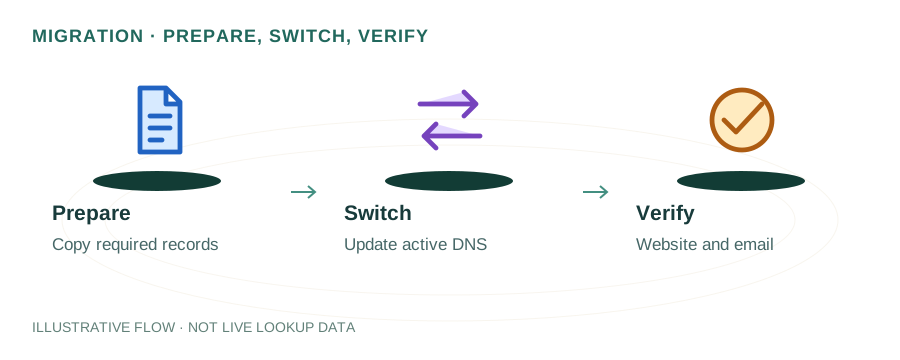
Separate the three things you are moving
Website hosting, DNS hosting and email hosting can be supplied by different companies. Uploading a website to cPanel does not require moving its nameservers. If your current DNS provider will remain active, you may only need to update the website’s address records. If you change nameservers, prepare the complete zone at the new DNS provider first.
1. Record the starting configuration
Export your DNS zone if your provider supports it. Otherwise, save the current records and their TTLs from its control panel. A public lookup is not a complete zone backup: it only asks for known names and types. Include www, mail-related hosts, verification tokens and service-specific subdomains.
- A and AAAA records for the website and each relevant hostname.
- CNAME aliases, including www and provider verification names.
- MX records and their preference numbers.
- TXT records, including SPF, DMARC and provider verification tokens.
- DKIM records at the selectors provided by your mail service.
- CAA, SRV and any other records your services depend on.
Record the old hosting IP and keep a copy of the existing website. Agree on a rollback point before changing public records.
2. Prepare the new website first
Add the domain to the correct cPanel account. Upload the contents of the production build into that domain’s document root. The domain root may be public_html, but addon domains can use another directory. Check cPanel’s Domains screen rather than guessing.
For a static React/Vite website, build on your computer and upload the generated HTML, CSS and JavaScript. Node.js is needed to build the files; it is not needed to serve them. MariaDB is unnecessary unless the application has an actual server-side database feature.
Use a hosts-file override or your provider’s supported preview method to check the new server before changing public DNS. Verify the homepage, a deep link, static assets and the 404 page. Confirm certificate provisioning with the host; a working file upload alone does not establish HTTPS readiness.
3. Reduce TTL early enough
If you can plan ahead, lower the affected record’s TTL before the move and allow its previous TTL to elapse. For example, if the old TTL was 86,400 seconds, changing it to 300 seconds immediately before cutover does not shorten old copies already cached for a day. Choose a value your provider supports.
4. Change records at the active DNS provider
Use cPanel’s Zone Editor only when the cPanel DNS service is authoritative for your domain. If the domain is delegated to another provider, make the change there instead. Check the registrar’s delegation and compare authoritative answers when there is uncertainty.
Update A and, if supported, AAAA records together. A forgotten AAAA record can keep IPv6 visitors on the old server even after IPv4 visitors see the new site. Keep email records unchanged when email is not moving. If nameservers are changing and DNSSEC is enabled, coordinate the DS records at the registrar with the new provider to avoid validation failures.
5. Verify the cutover
- Query the affected hostname and record type at the new authoritative service.
- Compare public resolver results and save their timestamps.
- Open both the root domain and www over HTTPS.
- Check a deep URL, an asset, a download and a deliberately missing URL.
- Send a normal mailbox-to-mailbox test if any mail configuration changed, and inspect headers.
Keep the old hosting service available while prior DNS answers may still be cached. Restore normal TTLs once the change is stable. Do not close the previous hosting account immediately after seeing one successful browser request.
Rollback when the evidence calls for it
If the new server fails, restore the recorded website addresses at the active DNS provider while you fix the server. Rollback also has cache delays. Avoid changing unrelated MX or authentication records during a website-only incident.
Reference
cPanel Zone Editor documentation describes the controls and supported record types. Hosting-provider settings may differ. Use the DNS result walkthrough to interpret your verification queries.