
DNS records: a practical starting point
Choose the DNS record that answers your question, then verify its value with a public lookup and your provider’s configuration.
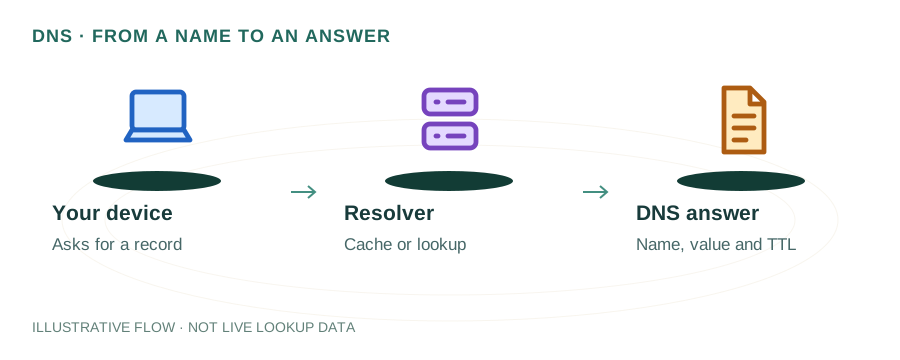
DNS is a directory with different kinds of answers
A domain does not have one universal DNS record. Each record type answers a different question. A and AAAA point a hostname to addresses; MX identifies mail exchangers; TXT carries text used by services. Always keep the queried hostname and record type together when saving a result.
Choose the record you actually need
| Question | Record | What to compare |
|---|---|---|
| Where does my website resolve over IPv4? | A | The hosting provider’s assigned IPv4 address. |
| Is IPv6 configured? | AAAA | The server’s supported IPv6 address. |
| Where is incoming mail sent? | MX | The mail provider’s exchangers and preferences. |
| Is this hostname an alias? | CNAME | The expected target hostname. |
| Is a verification token published? | TXT | The exact name and token supplied by the service. |
| Which nameservers are listed? | NS | The intended DNS provider and registrar delegation. |
| Are certificate issuers restricted? | CAA | The authority expected to issue the certificate. |
Query the exact hostname
example.com, www.example.com and mail.example.com are separate names. Service records may use underscore labels. For instance, a DMARC policy is normally published as TXT at _dmarc.example.com, while DKIM uses the selector supplied by the mail provider. Do not guess a selector and interpret a missing answer as a broken configuration.
Know which server answered
The homepage asks either Google Public DNS or Cloudflare, both recursive resolver services. They can return cached records. Your DNS dashboard shows configuration at a provider; it only affects the public domain when that provider serves the active delegated zone. If these views disagree, identify the active nameservers before making more edits.
Make one change, then verify
- Save the existing record and note its previous TTL.
- Confirm the expected new value with the service provider.
- Edit the record at the active DNS provider.
- Check the authoritative answer and then compare public resolver answers.
- Test the actual website or mail service separately.
A DNS answer alone does not confirm web uptime, TLS validity or inbox placement. Keep that distinction in mind when deciding what to investigate next.
Follow the next useful guide
- Read a DNS result, including empty answers and error codes
- Troubleshoot wrong addresses and failed resolution
- Plan a cPanel website migration
- Understand email authentication
For protocol background, see RFC 1035. For this lookup’s response fields, see Google Public DNS documentation.
New to DNS? Start with what DNS does and how a query is answered.