
nslookup Command Examples: The Complete DNS Query Guide
Use nslookup to query address, mail and nameserver records and compare answers from a chosen DNS server.
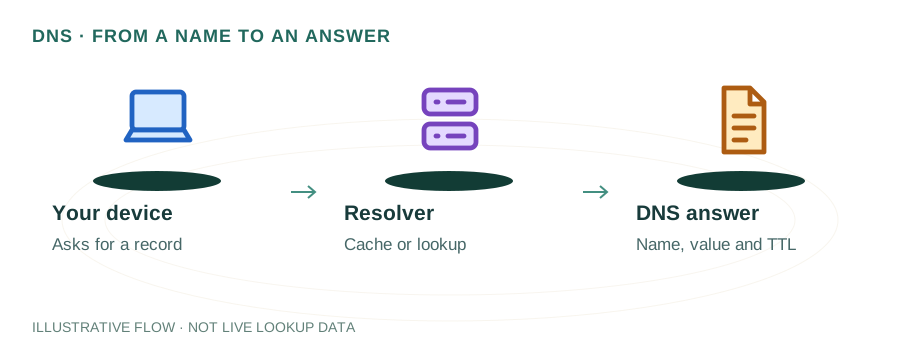
Published 2026-04-17 · 9 min read
nslookup (Name Server Lookup) is one of the most widely used command-line tools for querying DNS records. Available on Windows, macOS, and Linux, it lets you look up any DNS record type, query specific DNS servers, and troubleshoot DNS issues. This guide provides practical, copy-paste-ready examples for every common use case.
What is nslookup?
nslookup is a DNS diagnostic tool that queries DNS nameservers to look up domain name information. Originally developed as part of the BIND DNS server package, it's now a standard utility included with every major operating system. While newer tools like dig offer more features, nslookup remains the go-to tool for quick DNS lookups due to its simplicity and universal availability.
nslookup operates in two modes: non-interactive (single query from the command line) and interactive (ongoing session where you can run multiple queries). Both modes support all DNS record types and let you specify which DNS server to query.
Basic nslookup Usage
Simple Domain Lookup
$ nslookup google.com
Server:		8.8.8.8
Address:	8.8.8.8#53

Non-authoritative answer:
Name:	google.com
Address: 142.250.80.46
The output shows: your DNS server (8.8.8.8), the port (#53), and the resolved IP address. "Non-authoritative answer" means the result came from a cache, not directly from google.com's nameservers.
Reverse DNS Lookup
$ nslookup 8.8.8.8
Server:		192.168.1.1
Address:	192.168.1.1#53

8.8.8.8.in-addr.arpa	name = dns.google.
Passing an IP address instead of a domain performs a reverse DNS lookup (PTR record query), showing the hostname associated with that IP.
Query Specific Record Types
Use -type= or -query= to specify the record type:
MX Records (Email)
nslookup -type=MX gmail.comShows mail exchange servers and their priority values. Essential for email troubleshooting.
TXT Records (SPF, DKIM, DMARC)
nslookup -type=TXT example.comRetrieves TXT records including SPF policies, domain verification, and DMARC settings.
CNAME Records
nslookup -type=CNAME www.example.comShows canonical name aliases. Useful for checking CDN or subdomain configurations.
NS Records (Nameservers)
nslookup -type=NS example.comLists the authoritative nameservers for a domain.
SOA Record
nslookup -type=SOA example.comShows the Start of Authority record with zone serial number, refresh intervals, and admin contact.
AAAA Records (IPv6)
nslookup -type=AAAA google.comQueries for IPv6 addresses. Returns the 128-bit IPv6 address if the domain supports it.
ANY (All Records)
nslookup -type=ANY example.comRequests all available record types. Note: many DNS servers no longer support ANY queries due to amplification attack concerns.
Use a Specific DNS Server
By default, nslookup uses your system's configured DNS server. You can specify a different server by adding it after the domain:
# Query using Google DNS
nslookup example.com 8.8.8.8

# Query using Cloudflare DNS
nslookup example.com 1.1.1.1

# Query the authoritative nameserver directly
nslookup example.com ns1.example.com
This is extremely useful for checking DNS propagation — you can query different DNS servers worldwide to see if your changes have propagated.
Interactive Mode
Type nslookup without arguments to enter interactive mode:
$ nslookup
> server 8.8.8.8        # Switch to Google DNS
> set type=MX            # Set query type to MX
> gmail.com              # Query gmail.com
> set type=TXT           # Switch to TXT records
> _dmarc.gmail.com       # Check DMARC record
> exit                   # Leave interactive mode
Interactive mode is ideal when you need to run multiple queries in sequence, especially when investigating DNS issues that require checking several record types.
Advanced nslookup Examples
Check SPF Record
nslookup -type=TXT example.com | findstr "spf"    # Windows
nslookup -type=TXT example.com | grep "spf"        # Mac/Linux
Check DMARC Policy
nslookup -type=TXT _dmarc.example.comCheck DKIM Selector
nslookup -type=TXT google._domainkey.example.comDebug Mode (Verbose Output)
$ nslookup
> set debug
> google.com
Debug mode shows the full DNS query and response packets, including TTL values, response flags, and additional section records. Use set d2 for even more verbose output.
nslookup vs dig
| Feature | nslookup | dig |
|---|---|---|
| Availability | All OS (built-in) | Mac/Linux (install on Win) |
| Output detail | Simplified | Verbose with sections |
| TTL display | Debug mode only | Always shown |
| Scriptability | Basic | Excellent (+short flag) |
| DNSSEC check | No | Yes (+dnssec flag) |
| Best for | Quick lookups | Deep diagnostics |
Troubleshooting with nslookup
** server can't find domain: NXDOMAINThe domain doesn't exist or has no DNS records. Verify the domain spelling and check if it's registered.
** server can't find domain: SERVFAILThe DNS server failed to process the query. Try a different DNS server (8.8.8.8 or 1.1.1.1). Could indicate DNSSEC validation failure.
** server can't find domain: REFUSEDThe DNS server refused the query. You may be querying a server that doesn't allow recursive queries from your IP.
DNS request timed outThe DNS server is unreachable. Check your network connection, firewall rules, and try a different DNS server.
Frequently Asked Questions
What is nslookup used for?
nslookup is used to query DNS servers and look up domain name records. It can retrieve A, MX, CNAME, TXT, NS, SOA, and other DNS record types.
Is nslookup available on all operating systems?
Yes. It's pre-installed on Windows, macOS, and most Linux distributions. The syntax is identical across all platforms.
How do I check MX records with nslookup?
Run 'nslookup -type=MX domain.com' to see the mail exchange servers and their priorities for any domain.
Should I use nslookup or dig?
Use nslookup for quick lookups on any OS. Use dig for detailed diagnostics, scripting, and DNSSEC validation. Both are valid tools.
Try It Online
Don't want to use the command line? Use our free online DNS Lookup tool for instant results.