
How to Read Email Headers: A Complete Guide
Find the delivery route and authentication results in email headers to understand how a message reached its destination.
What Are Email Headers?
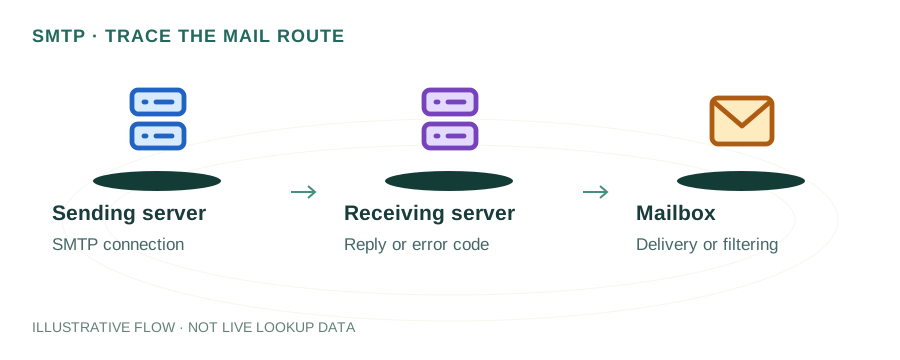
Every email contains hidden metadata called headers. These lines record the complete journey of a message — who sent it, which servers it passed through, when each hop occurred, and whether it passed authentication checks.
Headers are essential for troubleshooting delivery problems, identifying spam or phishing attempts, and verifying that your email authentication (SPF, DKIM, DMARC) is working correctly.
How to View Headers
Gmail
Open the message → click the three-dot menu (⋮) → select Show original. This opens a new tab with full headers and a summary of SPF/DKIM/DMARC results.
Outlook (Desktop)
Open the message → File → Properties → look in the Internet headers box at the bottom.
Outlook (Web)
Open the message → click the three-dot menu → View → View message source.
Apple Mail
Open the message → View → Message → All Headers (or press ⌘⇧H).
Thunderbird
Open the message → View → Message Source (or press Ctrl+U).
Key Header Fields
| Header | Purpose |
|---|---|
| From | Display sender address (can be spoofed) |
| Return-Path | Envelope sender — where bounces go. Used for SPF checks |
| Received | Added by each server in the chain — read bottom-to-top |
| Message-ID | Unique identifier for the message, useful for log searching |
| DKIM-Signature | Cryptographic signature for message integrity verification |
| Authentication-Results | SPF, DKIM, and DMARC pass/fail results from the receiving server |
| X-Mailer | The software used to send the message |
| X-Spam-Status | Spam filter verdict and score (SpamAssassin, etc.) |
Reading the Received Chain
The Received: headers form a chain showing every server the message passed through. Read them from bottom to top — the bottom-most Received header is the originating server.
Received: from gateway.example.com (198.51.100.5)
    by mx.recipient.com with ESMTPS id abc123
    for <user@recipient.com>;
    Thu, 27 Mar 2026 14:30:00 +0000 (UTC)

Received: from mailout.sender.com (203.0.113.10)
    by gateway.example.com with ESMTP id def456;
    Thu, 27 Mar 2026 14:29:58 +0000
Look for: the originating IP (bottom entry), timestamps between hops to identify delays, and any unexpected servers that might indicate message tampering or open relays.
Authentication-Results
This header is the most important for diagnosing deliverability. It shows whether the message passed SPF, DKIM, and DMARC:
Authentication-Results: mx.google.com;
    spf=pass (sender IP is 203.0.113.10)
        smtp.mailfrom=sender.com;
    dkim=pass header.d=sender.com header.s=sel1;
    dmarc=pass (p=REJECT) header.from=sender.com
Result Values:
pass — Authentication succeeded
fail — Authentication failed (message may be rejected or quarantined)
softfail — SPF soft failure (typically accepted but marked)
neutral — No policy defined
temperror — Temporary DNS lookup failure
permerror — Permanent error in the DNS record (syntax issue)
Diagnosing Common Issues
Email Delayed
Compare timestamps between Received headers. A large gap between two hops indicates where the delay occurred — often due to greylisting, queue backup, or DNS timeout.
SPF Failure
Check the Return-Path domain and the sending IP. If the IP isn't in the SPF record of the Return-Path domain, SPF fails. This is common when using third-party sending services.
DKIM Failure
Look at header.d and header.s in the results. Verify the selector's DNS record exists: dig TXT selector._domainkey.domain.com. Body modifications by mailing lists can break DKIM.
Suspicious Origin
Check the bottom-most Received header for the originating IP. Look it up with reverse DNS and geolocation. If it doesn't match the claimed sender, the message may be spoofed.
Header Analysis Tools
- Email Header Analysis Guide — our in-depth blog post on header parsing
- Google Admin Toolbox — Message Header Analyzer
- MXToolbox Header Analyzer
- mydnsreport.com SMTP Tools — test SMTP connectivity and authentication
FAQ
What are email headers?
Email headers are metadata lines recording the sender, recipient, timestamps, routing path, and authentication results as a message travels from origin to destination.
How do I view full email headers?
In Gmail: three-dot menu → Show original. In Outlook: File → Properties. In Apple Mail: View → Message → All Headers.
What does Authentication-Results mean?
It shows whether SPF, DKIM, and DMARC checks passed or failed. A pass means the message was verified; a fail may indicate spoofing or misconfiguration.