
DNS FAQ - Frequently Asked Questions About DNS
Find answers about DNS record types, caching, nameservers and email authentication, with links to practical checks.
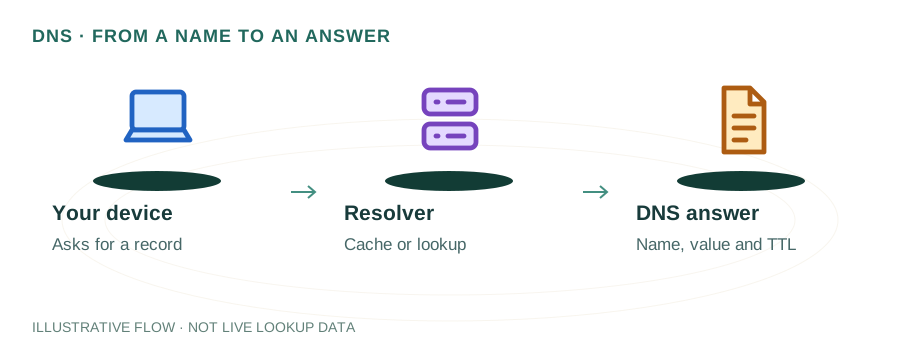
Find answers to the most common questions about DNS, email authentication, and domain configuration.
DNS Basics
How do I check my DNS records?
Use our free DNS lookup tool. Enter your domain name and click "Lookup" to view A, AAAA, MX, NS, TXT, CNAME, and other DNS records instantly. The tool queries multiple record types and displays results in an easy-to-read format.
What is the difference between A and CNAME records?
An A record maps a domain directly to an IP address (e.g., example.com → 93.184.216.34). A CNAME record creates an alias pointing to another domain name (e.g., www.example.com → example.com). Important: CNAME records cannot be used at the zone apex (root domain) — use an A record or ALIAS record instead.
What is TTL in DNS?
TTL (Time To Live) is the duration in seconds that a DNS record is cached by resolvers. Lower TTL (e.g., 300 seconds) means faster propagation of changes but more DNS queries. Higher TTL (e.g., 86400 seconds) reduces queries but slows down propagation of updates. Before making DNS changes, consider lowering TTL temporarily.
DNS Propagation
How long does DNS propagation take?
There is no universal propagation timer. Check authoritative data first, then compare the previous TTL and resolver cache state. Nameserver delegation and negative answers can have different caching behavior.
How can I speed up DNS propagation?
To speed up propagation: (1) Lower the TTL on your records before making changes — wait for the old TTL to expire first. (2) Use a low TTL like 300 seconds (5 minutes) for the new records. (3) Clear your local DNS cache. (4) Use tools to check propagation status across different regions.
Email & Deliverability
Why are my emails going to spam?
Common causes include: (1) Missing or incorrect SPF, DKIM, or DMARC records. (2) Being listed on email blacklists — use our blacklist checker. (3) Poor sender reputation from previous spam or bounces. (4) Content that triggers spam filters. (5) Sending from a new domain without warming up. Check your email authentication setup.
What are MX records and why do I need them?
MX (Mail Exchange) records specify which mail servers handle email for your domain. Without MX records, SMTP can fall back to address records for the domain. An explicit MX is normally configured for a mail provider; a Null MX explicitly declines incoming mail. MX records include a priority value — lower numbers indicate higher priority. Multiple MX records provide redundancy if one server is unavailable.
Do I need SPF, DKIM, and DMARC?
Yes, all three are recommended for proper email authentication. SPF specifies authorized sending servers. DKIM adds a cryptographic signature to verify email integrity. DMARC tells receivers what to do when authentication fails and provides reporting. Together, they significantly improve deliverability and protect against spoofing. See our email authentication guide.
Troubleshooting
How do I fix DNS_PROBE_FINISHED_NXDOMAIN error?
This error means the domain doesn't exist in DNS. Troubleshooting steps: (1) Verify the domain is registered and not expired. (2) Check that nameserver settings are correctly configured at your registrar. (3) Clear your local DNS cache (ipconfig /flushdns on Windows, sudo dscacheutil -flushcache on Mac). (4) Try using different DNS servers like Google (8.8.8.8) or Cloudflare (1.1.1.1).
Why is my website not loading after DNS changes?
Common causes: (1) A resolver may hold a cached answer — compare its TTL with authoritative DNS. (2) Incorrect A record IP address. (3) DNS cache on your device or browser. (4) Web server not configured for the domain. (5) SSL certificate issues if using HTTPS. Clear your browser cache and DNS cache, then test from a different network or device.
How do I clear my DNS cache?
Windows: Run "ipconfig /flushdns" in Command Prompt as Administrator. Mac: Run "sudo dscacheutil -flushcache; sudo killall -HUP mDNSResponder" in Terminal. Linux: Run "sudo systemd-resolve --flush-caches" or restart nscd service. Browser: Visit chrome://net-internals/#dns in Chrome and click "Clear host cache".
Security
What is DNSSEC and do I need it?
DNSSEC (DNS Security Extensions) adds cryptographic signatures to DNS records to prevent tampering and spoofing. It verifies that DNS responses haven't been modified. While not strictly required, DNSSEC is recommended for security-sensitive domains. Enable it at your registrar and DNS provider — both must support DNSSEC.
How do I protect my domain from DNS hijacking?
Protect your domain by: (1) Enabling DNSSEC. (2) Using strong, unique passwords for registrar and DNS accounts. (3) Enabling two-factor authentication. (4) Setting up domain lock to prevent unauthorized transfers. (5) Monitoring DNS records for unauthorized changes. (6) Using a reputable DNS provider with security features.