
How to Flush DNS Cache on Windows, Mac, Linux & Chrome
Clear local DNS caches on common operating systems and understand why this does not clear caches at public resolvers.
Published 2026-04-16 · 8 min read
DNS cache is your computer's way of remembering website addresses so it doesn't have to look them up every time. But sometimes this cache becomes stale or corrupted, causing websites to not load properly, show old content, or fail entirely. Flushing your DNS cache forces your device to fetch fresh DNS records. This guide shows you exactly how to do it on every major platform.
What is DNS Cache?
When you visit a website, your device queries a DNS server to translate the domain name (e.g., google.com) into an IP address (e.g., 142.250.80.46). To avoid repeating this lookup every time, your operating system stores the result in a local DNS cache. This cache is a temporary database of recent DNS lookups stored in your device's memory.
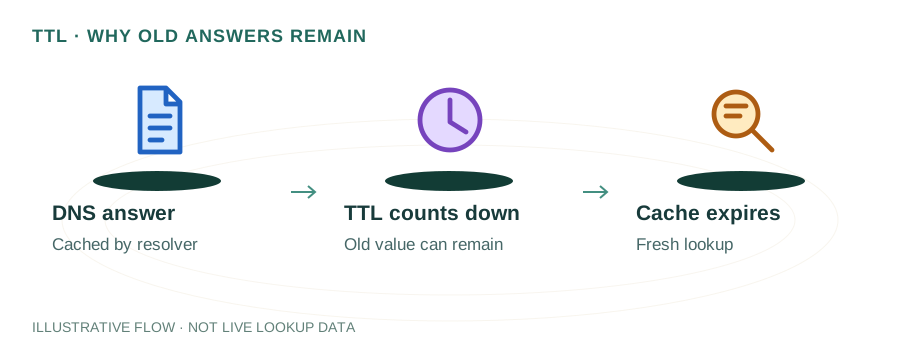
DNS caching happens at multiple levels: your browser has its own DNS cache, your operating system maintains a cache, and your router may also cache DNS results. Each cached entry has a Time To Live (TTL) value that determines how long it's stored before expiring. Common TTL values range from 60 seconds to 86,400 seconds (24 hours).
While DNS caching speeds up your browsing significantly (eliminating a 20-100ms DNS lookup for each page), it can cause problems when DNS records change. If a website migrates to a new server but your cache still holds the old IP address, you'll be directed to the wrong server — or nowhere at all.
Why Flush DNS Cache?
Common scenarios where flushing DNS helps:
- Website not loading: You get "DNS_PROBE_FINISHED_NXDOMAIN" or "Server not found" errors for a site that should work.
- Recent DNS changes: You updated your domain's DNS records and want to see the changes immediately on your device.
- Seeing old website: A website recently moved servers, but you still see the old version or get redirect errors.
- Security concerns: DNS cache poisoning attacks can redirect you to malicious sites. Flushing removes potentially poisoned entries.
- Development & testing: You're testing DNS changes for a domain and need to verify the new records are working.
- Network troubleshooting: After changing your DNS server or fixing network issues, flushing ensures clean resolution.
Flush DNS on Windows
Windows 10 / 11
- Press Win + R, type
cmd, press Enter - In Command Prompt, type:
ipconfig /flushdnsYou should see: "Successfully flushed the DNS Resolver Cache." To verify, check your current cache with:
ipconfig /displaydnsWindows PowerShell
Clear-DnsClientCacheFlush DNS on macOS
Open Terminal and run the command for your macOS version:
macOS Ventura, Sonoma & later (13+)
sudo dscacheutil -flushcache; sudo killall -HUP mDNSRespondermacOS Big Sur & Monterey (11-12)
sudo dscacheutil -flushcache; sudo killall -HUP mDNSRespondermacOS Catalina & Mojave (10.14-10.15)
sudo killall -HUP mDNSResponderYou'll be prompted for your admin password. There's no confirmation message on Mac — if no error appears, it worked.
Flush DNS on Linux
The command depends on your DNS service:
systemd-resolved (Ubuntu 18.04+, Fedora, Arch)
sudo systemd-resolve --flush-cachesOr on newer systems:
sudo resolvectl flush-cachesdnsmasq
sudo systemctl restart dnsmasqnscd
sudo systemctl restart nscdFlush Browser DNS Cache
Browsers maintain their own DNS cache separate from the OS. Even after flushing your system DNS cache, your browser may still use stale records.
Google Chrome
- Navigate to
chrome://net-internals/#dns - Click "Clear host cache"
- Then go to
chrome://net-internals/#sockets - Click "Flush socket pools" (clears cached connections)
Firefox
The easiest method: Press Ctrl+Shift+Delete, select "Cache" checkbox, and click "Clear Now". Alternatively, go to about:networking#dns and click "Clear DNS Cache".
Microsoft Edge
Navigate to edge://net-internals/#dns and click "Clear host cache" — same as Chrome since Edge is Chromium-based.
Flush DNS on Mobile
Android
Toggle Airplane Mode on and off — this clears the DNS cache. Alternatively, in Chrome for Android, navigate to chrome://net-internals/#dns and clear the cache.
iOS (iPhone/iPad)
Toggle Airplane Mode on and off. This is the most reliable method as iOS doesn't provide a direct DNS flush command. Alternatively, restarting your device also clears the DNS cache.
Troubleshooting After Flush
If flushing DNS doesn't resolve your issue, try these additional steps:
- Flush browser cache too: Clear both browser DNS cache and regular cache (Ctrl+Shift+Delete).
- Check your DNS server: Run
nslookup domain.comto verify your DNS server is responding correctly. - Try a different DNS: Temporarily switch to Google DNS (8.8.8.8) or Cloudflare (1.1.1.1) to rule out ISP DNS issues.
- Check DNS propagation: If you recently changed DNS records, use a DNS propagation checker to verify.
- Restart network adapter: Disable and re-enable your network connection to reset all network caches.
Frequently Asked Questions
What does flushing DNS cache do?
It clears all stored domain-to-IP mappings from your device, forcing fresh DNS lookups for every website. This fixes issues caused by stale or corrupted DNS records.
Is it safe to flush DNS cache?
Yes, completely safe. The only effect is slightly slower first visits to websites as your device fetches fresh DNS records. The cache rebuilds automatically as you browse.
How often should I flush DNS?
Only when needed — like after DNS changes, when troubleshooting connectivity, or if websites aren't loading correctly. There's no benefit to regular flushing.
Does flushing DNS delete browsing history?
No. DNS cache is separate from your browsing history, cookies, and saved passwords. Flushing DNS only removes cached IP address mappings.
Related Tools
After flushing your DNS cache, use our tools to verify your DNS is working correctly.