
DNS Caching Explained: How TTL, Resolvers & Browsers Cache DNS
Trace cached answers through browsers and resolvers. Learn how TTL affects when a changed record becomes visible.
What Is DNS Caching?
DNS caching is the process of storing DNS query results temporarily so that subsequent requests for the same domain are answered faster — without repeating the full resolution chain from root to authoritative nameserver.
Caching happens at multiple layers: inside your web browser, at the operating system level, at your local network's resolver, and at your ISP's recursive resolver. Each layer reduces latency and network traffic.
How DNS Caching Works
When you visit a website, the DNS resolution follows this caching hierarchy:
1. Browser Cache
Chrome, Firefox, and other browsers maintain an internal DNS cache. Chrome's can be viewed at chrome://net-internals/#dns.
2. OS Stub Resolver
The operating system checks its own cache before sending the query to a configured DNS resolver.
3. Recursive Resolver
Your ISP or public resolver (e.g., 8.8.8.8, 1.1.1.1) caches responses for the duration specified by the TTL.
4. Authoritative Server
If no cache exists, the resolver queries root → TLD → authoritative nameserver and caches the result.
The Role of TTL
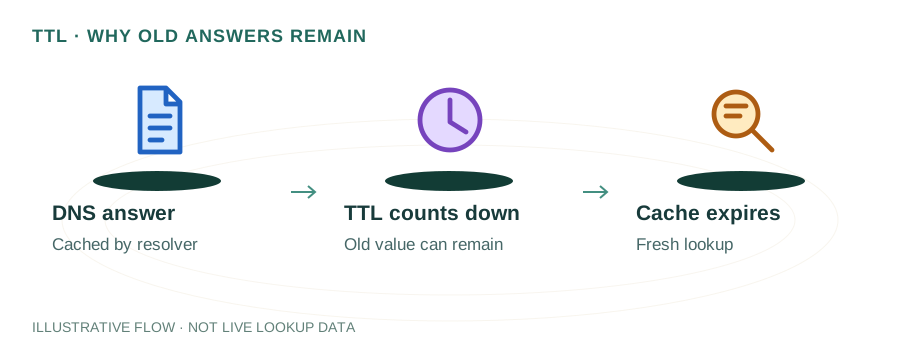
TTL (Time to Live) is a value in seconds attached to every DNS record. It tells resolvers how long to cache the response before requesting a fresh copy.
| TTL Value | Duration | Best For |
|---|---|---|
| 300 | 5 minutes | Records that change frequently (failover, migrations) |
| 3600 | 1 hour | General-purpose — good balance of freshness and performance |
| 86400 | 24 hours | Stable records (MX, NS) that rarely change |
Before making DNS changes, lower the TTL to 300 seconds at least 24–48 hours in advance so old cached values expire quickly.
Browser & OS Caching
Browser caches are short-lived (typically 1–2 minutes) and are cleared when the browser is closed. Chrome caps DNS cache at 1 minute regardless of TTL.
OS caches respect TTL values and persist across applications. Windows uses the DNS Client service; macOS uses mDNSResponder; Linux uses systemd-resolved or nscd.
Resolver-Level Caching
Recursive resolvers like Cloudflare (1.1.1.1) and Google (8.8.8.8) serve millions of users. When one user resolves example.com, the cached response benefits all subsequent queries from other users until the TTL expires.
This is why DNS changes aren't instant — different resolvers around the world may have cached different TTL windows.
How to Flush DNS Cache
Windows
ipconfig /flushdnsmacOS
sudo dscacheutil -flushcache; sudo killall -HUP mDNSResponderLinux (systemd)
sudo systemd-resolve --flush-cachesChrome Browser
chrome://net-internals/#dns → Clear host cacheCommon Caching Problems
Stale Records After Migration
If you changed DNS records but didn't lower TTL beforehand, users will see stale data until the old TTL expires.
Negative Caching
NXDOMAIN (non-existent domain) responses are also cached. If you query a domain before its records are published, the "not found" result persists for the SOA minimum TTL.
Cache Poisoning
Attackers can inject forged responses into a resolver's cache. DNSSEC validation prevents this by cryptographically signing records.
Best Practices
- Lower TTL to 300s before planned DNS changes, then raise it after propagation
- Use a TTL of 3600s (1 hour) as a sensible default for most records
- Enable DNSSEC to protect cached responses from poisoning
- Monitor cache hit rates on your recursive resolver for performance tuning
- Test with
dig +norecurseto check what a resolver has cached
FAQ
What is DNS caching?
DNS caching is the temporary storage of DNS query results by browsers, operating systems, and resolvers to speed up future lookups and reduce load on authoritative nameservers.
How long does a DNS cache last?
The duration is controlled by the TTL value set on the DNS record, typically ranging from 300 seconds (5 minutes) to 86400 seconds (24 hours).
How do I flush my DNS cache?
On Windows run ipconfig /flushdns, on macOS run sudo dscacheutil -flushcache, and on Linux run sudo systemd-resolve --flush-caches.