
Why Your Emails Go to Spam (And How to Fix It)
Investigate authentication, sender reputation and recipient filtering when legitimate email lands in spam.
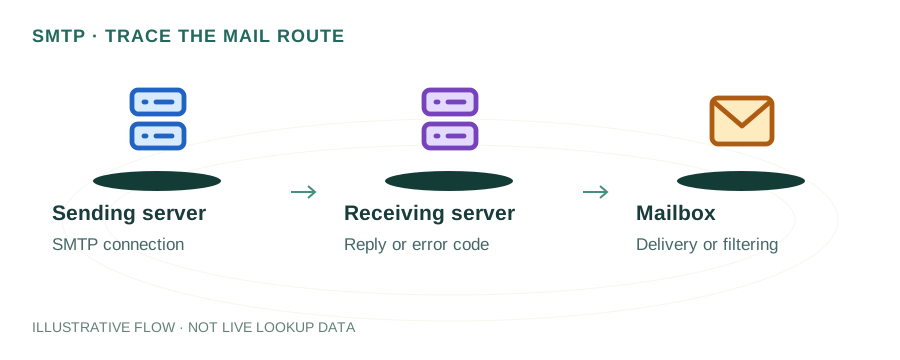
The named scenario below is a worked example for learning, not a verified incident report. Provider settings and outcomes vary.
How Email Spam Filtering Works
You send an email
Checks sender reputation
Verifies sending IP
Validates signature
Enforces alignment
Final placement decision
🎯 Illustrative example: Priya's Invoices Go to Spam
Priya runs a design agency. Her invoice emails to clients keep landing in spam. Here's what happened:
Priya sends invoice to client@bigcorp.com
Her email server at 185.20.x.x sends the invoice email from priya@designstudio.com.
BigCorp's mail server checks SPF
It looks up designstudio.com TXT record — no SPF record found. First red flag.
DKIM signature check
No DKIM key published in DNS. The email can't prove it wasn't tampered with. Second red flag.
DMARC policy check
No DMARC record at _dmarc.designstudio.com — no policy to follow. Third red flag.
Spam filter triggers
3 authentication failures + unknown sender reputation = email goes straight to spam folder.
The fix
Priya adds SPF (v=spf1 include:_spf.google.com ~all), sets up DKIM, and publishes a DMARC record. Next invoice goes to inbox.
After adding SPF + DKIM + DMARC, all invoices now land in the inbox consistently.
Without these DNS records, 40% of her emails were going to spam — she was losing clients.
The 5 Most Common Causes
- No SPF record. Without an SPF (Sender Policy Framework) TXT record, receiving servers have no way to verify that your sending server is authorized to send email for your domain. This is the single most common cause of spam folder placement. Your SPF record should list every IP address or service that sends email on your behalf — your web server, your email marketing platform (Mailchimp, SendGrid, etc.), and any transactional email service.
- Missing DKIM signing. DKIM (DomainKeys Identified Mail) adds a cryptographic signature to every outgoing email. The public key is published as a DNS TXT record under a selector subdomain (e.g.,
selector1._domainkey.yourdomain.com). Without DKIM, your emails can't prove they weren't tampered with in transit — and modern spam filters heavily penalize unsigned messages. - No DMARC policy. DMARC ties SPF and DKIM together and tells receiving servers what to do when checks fail. Without a DMARC record at
_dmarc.yourdomain.com, your domain is vulnerable to spoofing, and you get zero visibility into authentication failures. Start withv=DMARC1; p=none; rua=mailto:dmarc@yourdomain.comto collect reports before enforcing. - Blacklisted sending IP. Your mail server's IP address might be listed on one or more DNS-based blacklists (RBLs). This happens if the IP was previously used for spam or if your server was compromised. Use our RBL Blacklist Checker to check your IP against major blacklists.
- Poor sending reputation. Even with perfect DNS records, sending large volumes of email from a new domain or IP without warming up will trigger spam filters. ISPs like Gmail and Outlook track your domain's sending patterns over time — sudden spikes look suspicious.
How to Fix It: Step by Step
Step 1: Check your current records
Use the DNS Lookup tool to check your domain's current TXT records. Look for records starting with v=spf1 (SPF) and check if _dmarc.yourdomain.com exists. If either is missing, that's your first fix.
Step 2: Add or fix your SPF record
Create a TXT record on your root domain with a value like: v=spf1 include:_spf.google.com include:sendgrid.net ~all. Replace the includes with your actual sending services. Important: you can only have one SPF record per domain, and it must not exceed 10 DNS lookups.
Step 3: Enable DKIM signing
Your email provider (Google Workspace, Microsoft 365, SendGrid, etc.) will give you a DKIM public key to add as a TXT or CNAME record. The record name is typically selector._domainkey.yourdomain.com. Once published, your provider will automatically sign outgoing emails with the corresponding private key.
Step 4: Publish a DMARC policy
Add a TXT record at _dmarc.yourdomain.com with value v=DMARC1; p=quarantine; rua=mailto:dmarc@yourdomain.com; pct=100. Start with p=none to monitor, then move to p=quarantine or p=reject once you're confident everything is configured correctly.
Frequently Asked Questions
Why are my emails going to spam?
The most common cause is missing or misconfigured email authentication records — specifically SPF, DKIM, and DMARC. Without these DNS TXT records, receiving mail servers cannot verify your emails are legitimate, causing them to be flagged as suspicious or outright rejected.
How do I check if my domain has SPF configured?
Use the DNS Lookup tool to check TXT records for your domain. A valid SPF record starts with v=spf1. If none exists, create one listing your authorized mail servers and sending services.