
What is My DNS Server? How to Find and Change It
Find the DNS resolver configured on your device and understand how routers, VPNs and browser secure-DNS settings affect queries.
Published 2026-04-15 · 8 min read
Every time you visit a website, your device sends a request to a DNS server to translate the domain name (like google.com) into an IP address. But do you know which DNS server your device is actually using? Your DNS server choice affects your browsing speed, privacy, and security. In this comprehensive guide, we'll explain what DNS servers are, how to find yours, and why you might want to change it.
What is a DNS Server?
A DNS (Domain Name System) server is a specialized computer that maintains a database of domain names and their corresponding IP addresses. When you type "example.com" into your browser, your device contacts a DNS server to look up the IP address associated with that domain — for example, 93.184.216.34. Without DNS servers, you'd need to memorize numerical IP addresses for every website you want to visit.
Think of a DNS server as the internet's phone book. Just as you look up a person's name to find their phone number, your device looks up a domain name to find its IP address. This process happens billions of times per day across the internet, typically completing in under 50 milliseconds.
By default, your device uses the DNS server assigned by your Internet Service Provider (ISP). However, ISP DNS servers are often slow, may log your browsing activity, and sometimes redirect failed lookups to advertising pages. This is why many users choose to switch to a public DNS provider like Google DNS or Cloudflare DNS.
How to Find Your DNS Server
Finding your current DNS server is straightforward on any operating system. Here are the commands for each platform:
Windows
Open Command Prompt and run:
ipconfig /allLook for the "DNS Servers" line under your active network adapter. You'll typically see one or two IP addresses listed. You can also use nslookup — the first line of output shows your default DNS server.
macOS
Open Terminal and run:
scutil --dns | grep 'nameserver'Or check System Preferences → Network → Advanced → DNS tab. This shows all configured DNS servers for your connection.
Linux
Open Terminal and run:
cat /etc/resolv.confOn systems using systemd-resolved, use resolvectl status for more detailed information including which DNS server is being used per interface.
Mobile Devices
On Android, go to Settings → Network & Internet → Wi-Fi → tap your network → Advanced → DNS. On iOS, go to Settings → Wi-Fi → tap the (i) icon next to your network → scroll to DNS section.
Types of DNS Servers
Understanding the different types of DNS servers helps you grasp how the DNS system works as a whole:
Recursive Resolver
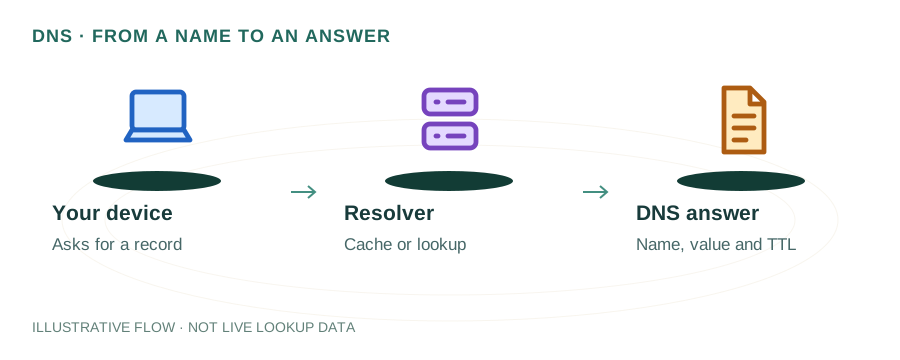
The DNS server your device talks to directly. It receives your query and does the work of tracking down the answer by querying other servers. Your ISP or public DNS provider runs these.
Root Name Servers
The 13 root server clusters that form the foundation of DNS. They don't know specific domain IPs but direct resolvers to the right TLD servers. Managed by organizations like ICANN, Verisign, and NASA.
TLD Name Servers
Servers responsible for top-level domains like .com, .org, .net, .uk. They know which authoritative nameservers handle each registered domain under their TLD.
Authoritative Name Servers
The final authority for a domain's DNS records. These servers hold the actual A, AAAA, MX, CNAME, and other records for a specific domain. Managed by the domain owner or their DNS provider.
Popular Public DNS Servers
Here are the most popular public DNS providers, each with their own strengths:
| Provider | Primary | Secondary | Best For |
|---|---|---|---|
| Google DNS | 8.8.8.8 | 8.8.4.4 | Reliability & global coverage |
| Cloudflare | 1.1.1.1 | 1.0.0.1 | Speed & privacy |
| Quad9 | 9.9.9.9 | 149.112.112.112 | Security & malware blocking |
| OpenDNS | 208.67.222.222 | 208.67.220.220 | Family filtering options |
Why Change Your DNS Server?
There are several compelling reasons to switch from your ISP's default DNS to a public DNS provider:
- Speed: Public DNS servers like Cloudflare (1.1.1.1) consistently outperform ISP DNS in independent benchmarks. Faster DNS = faster page loads.
- Privacy: ISP DNS servers often log every domain you visit. Cloudflare and Quad9 have strict no-logging policies.
- Reliability: Public DNS providers may use distributed infrastructure, but availability and service commitments differ by provider.
- Security: Providers like Quad9 automatically block known malicious domains, adding an extra security layer.
- No censorship: Some ISPs redirect failed DNS lookups to ad-filled pages or block certain domains. Public DNS avoids this.
- DNSSEC validation: Public DNS providers validate DNSSEC signatures, protecting against DNS spoofing attacks.
How to Change Your DNS Server
Windows 10/11
- Open Settings → Network & Internet → Change adapter options
- Right-click your connection → Properties
- Select "Internet Protocol Version 4 (TCP/IPv4)" → Properties
- Select "Use the following DNS server addresses"
- Enter preferred:
1.1.1.1and alternate:1.0.0.1 - Click OK and close all windows
macOS
- Open System Preferences → Network
- Select your connection → Advanced → DNS tab
- Click "+" and add
1.1.1.1and1.0.0.1 - Remove any existing ISP DNS entries
- Click OK → Apply
Router (All Devices)
To change DNS for all devices on your network at once, configure it on your router. Log into your router's admin panel (usually 192.168.1.1), find the DNS settings under WAN or Internet settings, and enter your preferred DNS servers. This change applies to every device connected to your network.
DNS Server Security
Your DNS server is a critical security component. DNS queries are traditionally sent in plain text, meaning anyone on your network path (including your ISP) can see every website you visit. Modern solutions include:
- DNS over HTTPS (DoH): Encrypts DNS queries inside HTTPS connections. Supported by all major browsers and Cloudflare/Google DNS.
- DNS over TLS (DoT): Encrypts DNS on a dedicated port (853). Supported by Android 9+ as "Private DNS".
- DNSSEC: Adds cryptographic signatures to DNS records, preventing tampering and spoofing attacks.
Frequently Asked Questions
What DNS server am I using?
Run 'ipconfig /all' on Windows, 'scutil --dns' on Mac, or 'cat /etc/resolv.conf' on Linux to see your current DNS server. You can also use our DNS Lookup tool to check.
Should I use 8.8.8.8 or 1.1.1.1?
Both are excellent. Cloudflare (1.1.1.1) is typically faster and has stronger privacy policies. Google DNS (8.8.8.8) has wider global coverage. Either is better than most ISP DNS servers.
Is changing DNS safe?
Yes, completely safe and reversible. You can always switch back to automatic (ISP) DNS if needed. Using reputable providers actually improves security.
Will changing DNS make my internet faster?
It can noticeably speed up page loads, especially the initial load of new websites. DNS resolution typically accounts for 20-120ms of each new page load. Faster DNS = faster browsing.
Can my ISP still see my browsing if I change DNS?
Changing DNS alone doesn't hide your traffic from your ISP. However, combining DNS over HTTPS (DoH) with a different DNS provider encrypts your DNS queries from ISP monitoring.
Check Your DNS Configuration
Use our free DNS Lookup tool to check DNS records for any domain and verify your configuration.