
How to Change Nameservers Without Downtime
Prepare a replacement DNS zone, verify authoritative answers and change registrar delegation while preserving mail records.
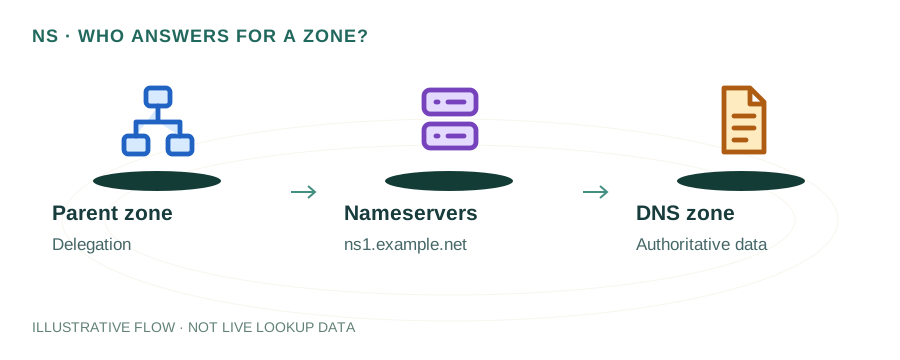
The named scenario below is a worked example for learning, not a verified incident report. Provider settings and outcomes vary.
Nameserver Migration Flow
Reduce to 300s pre-migration
Replicate at new NS
Test all records
Change at registrar
Monitor worldwide
Raise TTL back up
🎯 Illustrative example: Arjun Moves Nameservers Without Prep
Arjun's site goes down for 8 hours because he changed nameservers without lowering TTL first:
Arjun changes NS at registrar
Switches from ns1.olddns.com to ns1.newhost.com — but TTL is 86400 (24 hours).
Site goes down immediately
New nameserver doesn't have his DNS records yet. Visitors get NXDOMAIN errors.
Scrambles to add records at new NS
Copies A, MX, TXT, CNAME records from memory — misses the DKIM record for email.
8-hour partial outage
Some resolvers still point to old NS (cached), some to new NS (missing records). Mixed results.
The right way
Step 1: Copy ALL records to new NS. Step 2: Lower TTL to 300 at old NS. Step 3: Wait 24h. Step 4: Change NS. Step 5: Restore TTL.
Zero downtime with proper prep
When done correctly, the switch is seamless — old and new NS serve identical records during transition.
Proper NS migration: lower TTL → replicate records → change NS → zero downtime.
Rushing the change caused 8 hours of downtime and broken email.
Why Would You Change Nameservers?
Common reasons for a nameserver migration include:
- Moving to a better DNS provider — switching from your registrar's basic DNS to Cloudflare, AWS Route 53, or Google Cloud DNS for better performance and features.
- Consolidating DNS management — bringing all domains under one provider for easier management.
- Web hosting migration — some hosts require using their nameservers.
- Security concerns — moving to a provider with DNSSEC support or DDoS-protected DNS.
Step 1: Preparation (48 Hours Before)
Export all current DNS records
Use our DNS Lookup tool to get a complete list of all records: A, AAAA, MX, TXT, CNAME, NS, SRV, CAA. Don't forget SPF, DKIM, and DMARC records — missing email authentication records will break email delivery.
Lower TTL values
48 hours before the switch, lower all record TTLs to 300 seconds (5 minutes). This ensures that once you switch, DNS resolvers worldwide will pick up the new records quickly instead of serving cached old data.
Set up records on new nameserver
Recreate every single DNS record on the new provider before changing the delegation. Verify each record is correct. The new nameserver must be fully ready to serve traffic the moment it becomes authoritative.
Step 2: The Switch
- Verify all records on new nameserver — query the new nameserver directly to confirm records are correct:
dig @ns1.newprovider.com yourdomain.com A - Update nameservers at your registrar — log into your domain registrar (GoDaddy, Namecheap, Google Domains, etc.) and update the NS records to point to your new provider's nameservers.
- Monitor propagation — use our DNS Lookup to check if the new records are being served. Query from multiple locations.
# Query new NS directly to verify before switching
$ dig @ns1.cloudflare.com yourdomain.com A +short
93.184.216.34
$ dig @ns1.cloudflare.com yourdomain.com MX +short
10 mail.yourdomain.com.
Step 3: After the Switch (72 Hours)
- Keep old DNS provider active for 72 hours — some resolvers may still query the old nameservers until their NS cache expires.
- Monitor email delivery — send test emails and check for bounces. Email is usually the first thing to break in a bad migration.
- Check SSL certificate renewal — if you use DNS-based certificate validation (e.g., Cloudflare or Let's Encrypt with DNS-01), ensure the validation TXT records are on the new nameserver.
- Restore TTLs — once propagation is complete and everything works, raise TTLs back to normal values (3600-86400 seconds).
Migration Checklist
- Exported all DNS records (A, AAAA, MX, TXT, CNAME, SRV, CAA)
- Noted all SPF, DKIM, and DMARC records
- Lowered TTLs to 300 seconds 48 hours before migration
- Recreated all records on new nameserver
- Verified records by querying new NS directly
- Updated NS delegation at registrar
- Tested website, email, and all subdomains
- Monitored for 72 hours
- Restored TTLs to production values
- Decommissioned old DNS zone after 7 days
Frequently Asked Questions
How long does a nameserver change take?
Nameserver changes typically take 1-48 hours to fully propagate globally, though most resolvers pick up the change within 2-4 hours. The TLD registry updates usually happen within minutes, but cached NS records at recursive resolvers take longer to expire.
Will changing nameservers cause downtime?
It can if done incorrectly. The key is to replicate all DNS records on the new nameserver BEFORE changing the NS delegation at your registrar. If the new nameserver is missing records, visitors will get errors during propagation.
Can I revert a nameserver change?
Yes, you can change nameservers back at your registrar. However, reverting also takes 1-48 hours to propagate. Keep your old DNS provider active for at least 72 hours after switching so you can revert if needed.