
dig Command Tutorial: DNS Lookup Examples for Beginners & Pros
Use dig to select record types and resolvers, read response status and TTL, and investigate DNS delegation.
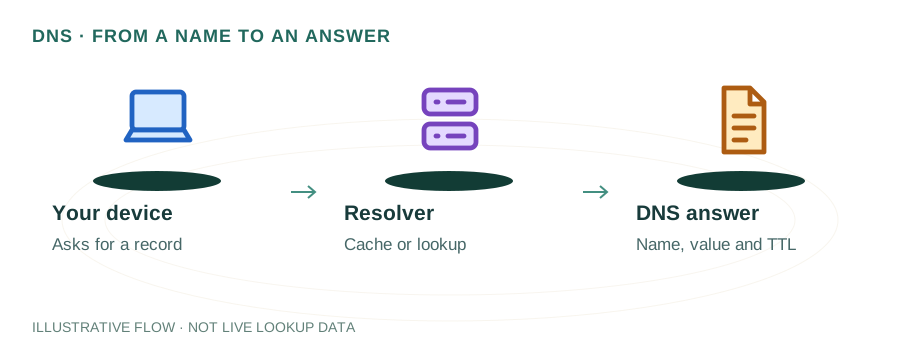
Published 2026-04-18 · 10 min read
The dig command (Domain Information Groper) is the gold standard for DNS diagnostics. While nslookup is great for quick lookups, dig provides much more detailed output including TTL values, response flags, query timing, and DNSSEC validation. This comprehensive tutorial covers everything from basic queries to advanced DNS troubleshooting techniques.
What is the dig Command?
dig is a flexible DNS lookup utility developed as part of BIND (Berkeley Internet Name Domain). It queries DNS nameservers and displays the responses in a structured, detailed format. Unlike nslookup, dig shows the complete DNS response including answer, authority, and additional sections, along with response timing and flags.
dig is the preferred tool among DNS administrators and network engineers because its output is machine-parseable, it supports DNSSEC validation, and it can trace the full DNS resolution path from root servers to authoritative nameservers.
Installing dig
macOS
Pre-installed. Open Terminal and type dig -v to verify.
Linux (Ubuntu/Debian)
sudo apt install dnsutilsLinux (CentOS/RHEL/Fedora)
sudo yum install bind-utilsWindows
Use WSL (wsl --install) then install dnsutils, or download BIND tools from isc.org.
Basic dig Usage
Simple Lookup
$ dig google.com

; <<>> DiG 9.18.18 <<>> google.com
;; global options: +cmd
;; Got answer:
;; ->>HEADER<<- opcode: QUERY, status: NOERROR, id: 12345
;; flags: qr rd ra; QUERY: 1, ANSWER: 1, AUTHORITY: 0, ADDITIONAL: 1

;; ANSWER SECTION:
google.com.		300	IN	A	142.250.80.46

;; Query time: 12 msec
;; SERVER: 8.8.8.8#53(8.8.8.8)
;; WHEN: Thu Apr 18 10:00:00 UTC 2026
;; MSG SIZE  rcvd: 55
Short Answer Only
$ dig google.com +short
142.250.80.46
The +short flag is perfect for scripting — it outputs only the answer values.
Query a Specific DNS Server
$ dig @1.1.1.1 example.com      # Query Cloudflare DNS
$ dig @8.8.8.8 example.com      # Query Google DNS
$ dig @ns1.example.com example.com  # Query authoritative NS
Understanding dig Output
HEADER
Contains the response status (NOERROR, NXDOMAIN, SERVFAIL), flags (qr=query response, rd=recursion desired, ra=recursion available, aa=authoritative answer), and record counts.
QUESTION SECTION
Echoes back what you asked — the domain name, record class (IN = Internet), and record type (A, MX, etc.).
ANSWER SECTION
The actual DNS records matching your query. Shows: domain name, TTL (seconds), class, record type, and record value.
AUTHORITY SECTION
Lists the authoritative nameservers for the domain. Appears when the answer comes from a referral.
ADDITIONAL SECTION
Contains extra helpful records, like A records for nameservers listed in the authority section (glue records).
Query Statistics
Shows query time (milliseconds), the DNS server used, timestamp, and message size. Useful for performance benchmarking.
Query Specific Record Types
dig example.com A        # IPv4 address
dig example.com AAAA     # IPv6 address
dig example.com MX       # Mail servers
dig example.com NS       # Nameservers
dig example.com TXT      # TXT records (SPF, DKIM, etc.)
dig example.com CNAME    # Canonical name
dig example.com SOA      # Start of Authority
dig example.com CAA      # Certificate Authority Authorization
dig example.com SRV      # Service records
dig example.com ANY      # All records (may be restricted)
Advanced dig Options
Trace DNS Resolution Path
dig example.com +traceThe +trace flag follows the entire DNS resolution path from root servers → TLD servers → authoritative servers. This is invaluable for debugging delegation issues and seeing exactly where DNS resolution fails.
Check DNSSEC
dig example.com +dnssec
dig example.com DNSKEY +dnssec
The +dnssec flag requests DNSSEC records (RRSIG, DNSKEY). Look for the ad flag in the header — it means the response was DNSSEC-validated.
Reverse DNS Lookup
dig -x 8.8.8.8Batch Queries
# Create a file with domains (one per line)
echo -e "google.com
yahoo.com
github.com" > domains.txt
dig -f domains.txt +short
No Recursion (Direct Authority Query)
dig @ns1.google.com google.com +norecurseSends a non-recursive query directly to the authoritative server. The response will have the aa (authoritative answer) flag set.
dig for Email Troubleshooting
# Check MX records
dig example.com MX +short

# Check SPF record
dig example.com TXT +short | grep "v=spf1"

# Check DMARC record
dig _dmarc.example.com TXT +short

# Check DKIM record (replace 'google' with your selector)
dig google._domainkey.example.com TXT +short

# Check PTR (reverse DNS) for mail server IP
dig -x 192.0.2.1 +short
dig Cheat Sheet
| Command | Description |
|---|---|
| dig domain.com | Basic A record lookup |
| dig domain.com +short | Answer only (no headers) |
| dig @8.8.8.8 domain.com | Query specific DNS server |
| dig domain.com MX | Query MX records |
| dig domain.com +trace | Trace full resolution path |
| dig domain.com +dnssec | Check DNSSEC signatures |
| dig -x IP_ADDRESS | Reverse DNS lookup |
| dig domain.com +noall +answer | Show answer section only |
| dig domain.com +stats | Show query statistics |
| dig -f file.txt | Batch query from file |
Frequently Asked Questions
What is the dig command?
dig (Domain Information Groper) is a DNS lookup utility that queries DNS nameservers and displays detailed information about DNS records, query timing, and response flags.
How do I install dig on Windows?
Install WSL (Windows Subsystem for Linux) and run 'sudo apt install dnsutils', or download BIND tools from isc.org for native Windows support.
What does +trace do in dig?
+trace makes dig follow the entire DNS resolution chain from root servers to authoritative nameservers, showing every step of the delegation process.
What's the difference between dig and nslookup?
dig provides more detailed output (TTL, flags, query time), supports DNSSEC validation, and is better for scripting. nslookup is simpler and available on all OS by default.
Online DNS Lookup
Prefer a GUI? Our free DNS Lookup tool provides the same results without the command line.