
How to Set Up Cloudflare DNS (Step by Step Guide)
Plan a move to Cloudflare DNS: inventory records, verify imported values, update delegation and test website and mail service.
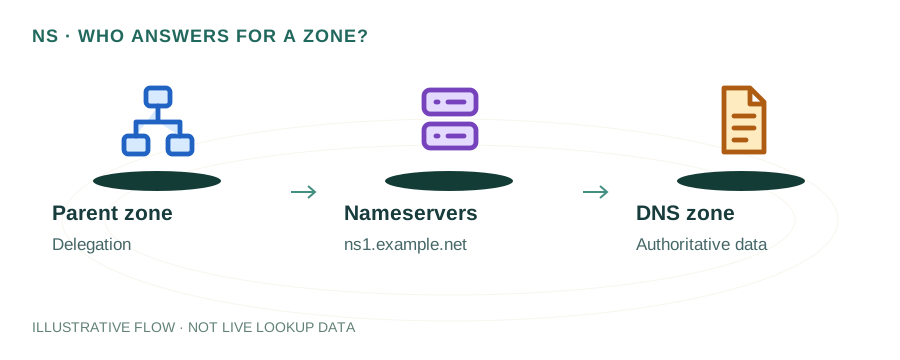
The named scenario below is a worked example for learning, not a verified incident report. Provider settings and outcomes vary.
Cloudflare DNS Migration Flow
Export current records
Create site, import
Cross-check all records
Update nameservers
Wait 24-48 hours
Configure proxy & SSL
🎯 Illustrative example: Rohan Migrates to Cloudflare
Rohan wants Cloudflare's CDN and DDoS protection for his e-commerce store. Here's his migration:
Documents all existing DNS records
Uses DNS lookup tool — finds 2 A records, 5 MX records (Google Workspace), 3 TXT records (SPF, DKIM, verification), 2 CNAMEs.
Adds site to Cloudflare
Cloudflare auto-imports most records but misses his DKIM selector record — he adds it manually.
Changes nameservers at registrar
Updates from old NS to earl.ns.cloudflare.com and vita.ns.cloudflare.com.
Waits for propagation
After 4 hours, Cloudflare confirms nameservers are active. Full propagation takes 12 hours.
Email stops working!
He proxied (orange cloud) the MX target — Cloudflare can't proxy mail. He switches MX targets to DNS-only (grey cloud).
Everything works
Website loads through Cloudflare CDN, email flows through Google, SSL is on Full (Strict) mode.
Site loads 40% faster with Cloudflare CDN. DDoS protection active. Email works perfectly.
Proxying MX records broke email for 6 hours — always use DNS-only for mail servers.
Before You Start
Before migrating, use the DNS Lookup tool to document all your current DNS records. You'll need to recreate them in Cloudflare. Pay special attention to: A and AAAA records (your hosting IP), MX records (email routing), TXT records (SPF, DKIM, domain verification), and any CNAME records. Cloudflare's import tool catches most records automatically, but it occasionally misses subdomains or DKIM selectors.
Step-by-Step Migration
Step 1: Create a Cloudflare Account & Add Your Domain
Sign up at cloudflare.com (free plan is sufficient for DNS). Click "Add a Site," enter your domain (e.g., example.com), and select the Free plan. Cloudflare will scan your existing DNS records and import them. Review every imported record carefully against your DNS Lookup results — add any that were missed.
Step 2: Review Proxy Settings (Orange vs Grey Cloud)
Each record has an orange cloud (proxied) or grey cloud (DNS only) toggle. Proxied means traffic routes through Cloudflare's CDN and gets DDoS protection + caching. DNS only means Cloudflare just resolves the DNS. Set A/AAAA records to proxied. Set MX records, DKIM CNAME records, and any records where the actual IP must be visible (like FTP servers) to DNS only.
Step 3: Update Nameservers at Your Registrar
Cloudflare will give you two nameservers (e.g., ada.ns.cloudflare.com and bob.ns.cloudflare.com). Log in to your domain registrar (GoDaddy, Namecheap, etc.), find the nameserver settings, and replace the existing nameservers with Cloudflare's. This typically takes 1-24 hours to propagate. Verify by checking NS records with the DNS Lookup tool.
Step 4: Configure SSL/TLS
In Cloudflare's SSL/TLS settings, set the mode to Full (Strict) if your origin server already has a valid SSL certificate. If not, use Full and install a Cloudflare Origin Certificate on your server. Avoid "Flexible" mode as it leaves the connection between Cloudflare and your server unencrypted — which is a security risk. Always enable "Always Use HTTPS" and "Automatic HTTPS Rewrites."
Step 5: Verify Everything Works
After nameserver propagation completes, verify: (1) your website loads over HTTPS, (2) email still works by sending a test email and checking MX records, (3) any API subdomains or services that rely on DNS are functioning. Use the SMTP Tools to verify mail server connectivity and the Blacklist Checker to confirm your IP reputation is intact.
Frequently Asked Questions
How do I switch my DNS to Cloudflare?
Sign up for Cloudflare, add your domain, verify the imported DNS records, then update your domain registrar's nameservers to the two Cloudflare nameservers provided. Propagation takes 1-24 hours. Use the DNS Lookup tool to verify NS records have updated.
What does the Cloudflare proxy (orange cloud) do?
The orange cloud icon means traffic is routed through Cloudflare's network, enabling CDN caching, DDoS protection, and SSL termination. The grey cloud (DNS only) means Cloudflare resolves the DNS but traffic goes directly to your origin server. Use proxied mode for web traffic and DNS-only for mail and DKIM records.